Chord Tools
I have been using Guitar Chord Tools by AxeManBaxMan a lot, but when it stopped working, I decided to make another version to keep it running.
Download here: https://workspace.google.com/marketplace/app/chord_tools/946226561099
Introduction
This Add-on is a tool for folks who like to grab songs from the web with chords and lyrics, and want some of the tools provided by sites like Ultimate Guitar, but would like to be able to have the ability to edit their songs for themselves. Chord Tools works on plain text. It doesn’t turn your tab into some graphical ChordPro type thing. It just works with text, which is the way I like it. Keep it simple.
I made this mainly for myself in my spare time, since I always find some little thing in the formatting, or correctness of songs on the web that I’d like to tweak. I’ve also been bitten by online guitar chord archives pulling the songs of certain artists during legal disputes (Weezer songs disapeared for a while, for example). So if it’s a song I want to learn to play, I just prefer to have my own copy in Google Docs.
However, until now, if I wanted to fix the highlighting of chords, I had to manually paste the format on all of them, one line at a time. Or if I wanted to transpose the key of the song I’d also have to do that manually. Which is such a pain that when I’ve wanted that in the past I just went back to the online site, transposed with their tool, and copied back into my Google Doc. And then of course I had to re-do any corrections I had already made.
Well, NO MORE, now you can highlight chords automatically, and transpose the key of your songs right inside Google Docs, with the Chord Tool Add-on.
Highlight ChordS
Say you find a song you like somewhere on the web. You copy and paste it into a Google Doc for your own private use. Given a bit of a song like this:
G D Em7 Am C
A long, long time ago I can ...
Em D G D Em7 (G)
music used to make me smile And I ...
Just click on the Chord Tools button in the add ons side bar and choose Highlight Chords.
The chords will be recognized and highlighted automatically:
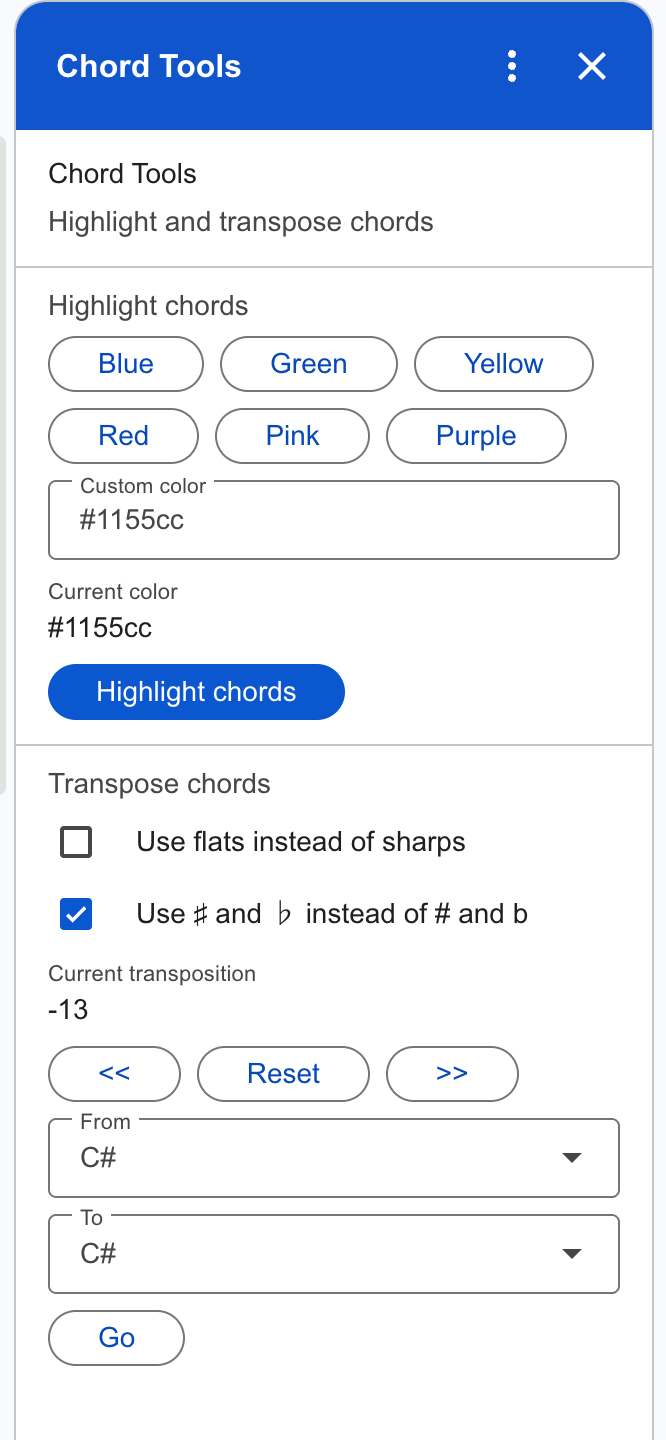
To change the color used for highlighting:
Click one of the buttons after “Highlight Cords” to change chords to that color.
In “Custom color” type in an HTML color string in the format like “#RRGGBB” or “rgb(100,200,50)”.
“Current color” shows what color was last used for highlighting.
“Highlight chords” highlights the chords with the color in the “Custom color” box. I realize this isn’t the world’s clearest user interface. But this is what $FREE buys you.
Transpose Chords
Now you’re playing along, but you’re playing the exact same chords as the gal next to you. To mix it up you’d like to get some different chord voicings. With the “<<” and “>>” transpose buttons you can change the key the chords are in, and use this to find an alternate fingering to use with a capo.
G D Em7 Am C
A long, long time ago I can ...
Em D G D Em7 (G)
music used to make me smile And I ...
Say instead of starting on G we want to start with a C shape. Just keep hitting the “<<” button until that G turns into a C. Each time you hit that “<<” button, it’s like moving the capo one fret up the neck of the guitar. After hitting “<<” 7 times, we end up at:
C G Am7 Dm F
A long, long time ago I can ...
Am G C G Am7 (C)
music used to make me smile And I …
So now if we put the capo on fret 7 and play the indicated chord shapes, we can play along, still actually in the same key as the original, but with different chord voicings to spice it up a bit.
Ok, but that was a lot of tapping! Seven times!!?? What am I? A cookie clicker? Can we do that quicker? Yes we can. Can it just read my mind or use some machine intelligence so I don’t have to do anything?? No, it can’t.
But here’s what it can do: with the drop down choice boxes pick “G” for the “from” chord and “C” for the “to” chord (as shown), and hit “Go”. Guitar Chord Tools will figure out that requires seven half-steps down, and just do that.
To go back to the original key press the “Reset” button between the << and >>.
There are also two check boxes that affect how the transposing happens.
When transposing, say “A” up a half-step, the next chord could be written as either “A#” or “Bb”. These are known as enharmonic equivalents. If you’d prefer to get flats instead of sharps, check this box before hitting the transpose up/down buttons.
Just like it says, this uses the Unicode characters ‘♯’ and ‘♭’ to denote sharps and flats when transposing, instead of plain ASCII ‘#’ and ‘b’. The down side is that these symbols usually end up having a different width than other characters, so the overall appearance may suffer. Compare:
G♯ D♯ Fm7 A♯m C♯
A long, long time ago I can ...
Fm D♯ G♯ D♯ Fm7 (G♯)
music used to make me smile And I ...
vs.
G# D# Fm7 A#m C#
A long, long time ago I can ...
Fm D# G# D# Fm7 (G#)
music used to make me smile And I ...
It actually looks pretty good in this font, at least. The choice is up to you!
Anyway, for both of these options (use flats, and use Unicode) you actually have to transpose something for the choice to take effect. It applies to the next transposition you do. Again, maybe not award-winning UI, but like good advice, this costs nothing and is worth the price.
Contact
This is just a hobby project of mine, so I can’t make any promises, but if you find a good bug I will probably do what I can to fix it.